Search and filtering
Use the course browser to find offered courses by code or title, narrow them to a planning source, and keep only section combinations that fit your timetable.
Search starts after you enter at least two characters. Matching is case-insensitive.
Basic search
Enter a course code, department, number, or words from a course title.
| Search | Matches |
|---|---|
COMP | Courses whose code or title contains COMP |
COMP 2011 | Courses matching both COMP and 2011 |
"machine learning" | The complete phrase machine learning |
COMP OR MATH | Courses matching either COMP or MATH |
(COMP OR MATH) 2 | COMP or MATH matches that also contain 2 |
Spaces work like AND. Explicit AND and OR are also supported, AND is evaluated before OR, and parentheses change the grouping. NOT is not supported.
Select Clear search to remove the complete expression. Source filters appear as colored chips and can be removed with Backspace.
Filter by a course source
When the search box is empty, the course browser offers these sources:
- Bookmarked courses shows courses bookmarked in the current timetable plan.
- Common Core lets you choose a curriculum and area.
- Semester Planner shows courses assigned to a planned term.
- Graduation Tracker shows planned courses or courses that satisfy a requirement or area.
Source chips also appear on matching courses. Select a chip to add that source to the current search. For example, adding a Common Core chip to HUMA keeps only HUMA courses in that Common Core area.
You can type a few common source expressions directly:
| Expression | Meaning |
|---|---|
bookmarked | Courses bookmarked in the current timetable plan |
CC22:SA | CC22 Social Analysis courses |
y2f | Courses in Year 2 Fall across your Semester Planner plans |
gt:planned | Planned courses across your Graduation Tracker plans |
Plan-specific Semester Planner and Graduation Tracker expressions contain internal plan and requirement IDs. Use the source picker instead of typing those expressions manually.
Filter by class time
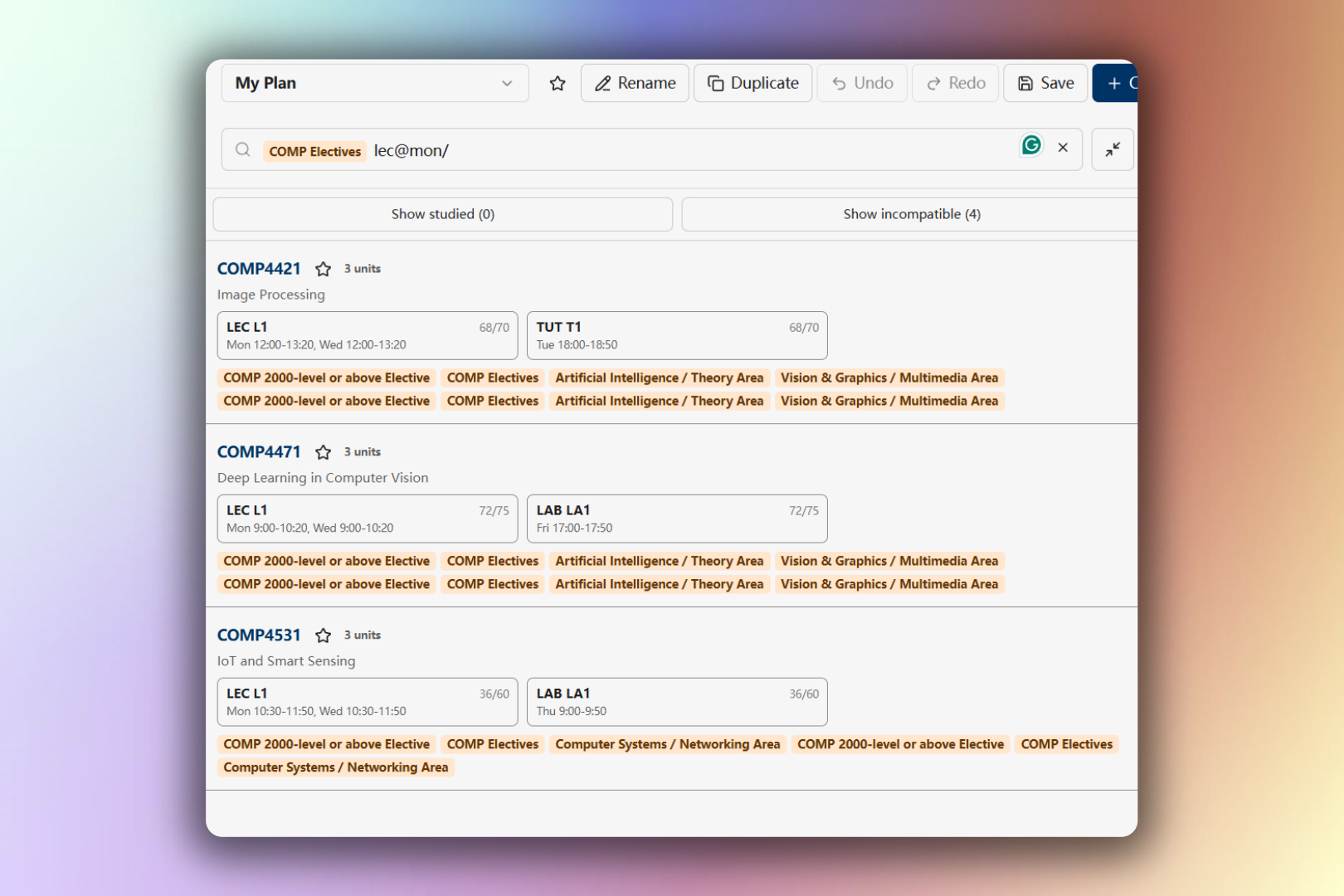
Class-time filters evaluate compatible lecture (LEC), tutorial (TUT), or lab (LAB) combinations.
| Search | Meaning |
|---|---|
COMP LEC@Tue,Thu | COMP courses with a lecture meeting on exactly Tuesday and Thursday |
COMP LAB@Fri0900-1200 | COMP courses whose Friday lab meetings fit within 09:00–12:00 |
COMP TUT?@Fri0900-1200 | Apply the Friday window when a tutorial exists; also allow courses without tutorials |
COMP LEC@Tue/ | Require Tuesday and allow the lecture to meet on additional days |
COMP (LEC@Tue OR LEC@Fri/) | COMP courses with either of the two lecture patterns |
Use 24-hour times in HHMM format. A trailing / allows meeting days in addition to the days you list. A ? after the component type makes that component optional.
Every OR branch containing a class-time filter must also contain a course or source filter. A class-time filter cannot be used as a stand-alone catalog search.
Hide studied or incompatible results
Two controls appear above the search results:
- Hide studied removes courses identified in your academic record. The count applies to the current search results.
- Hide incompatible removes courses that have no conflict-free section combination with the current timetable.
Select either control again to show the hidden results.
On desktop, select Expand sidebar beside the search box to list individual compatible section combinations. In expanded mode, Hide incompatible removes conflicting combinations rather than hiding an entire course when at least one compatible combination remains. Hover over a combination to preview it, then select it to apply all of its linked sections.
Why a result may be unavailable
Study Planner and Graduation Tracker sources can reference a course that is not offered in the timetable plan's selected academic term. The result remains visible with Not offered, but it cannot be added to the timetable.
Search messages explain invalid expressions, unavailable source filters, and cases where all matching results are hidden.