Course Ratings for Planner
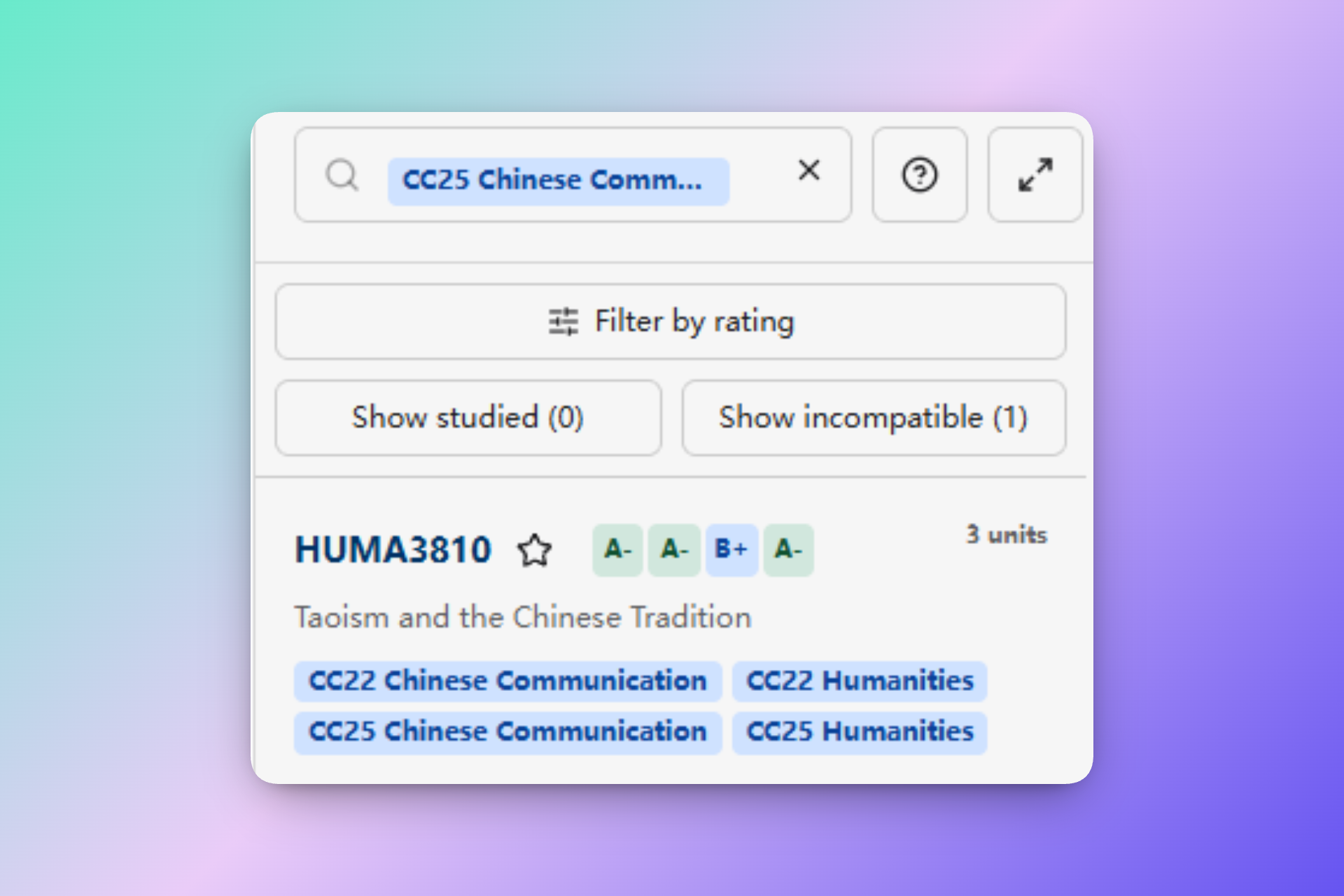
The Course Ratings for Planner Chrome extension retrieves aggregate course ratings from UST.space and displays them at Timetable Planner.
This is a community-driven extension. No official support is provided for this extension. Install and use it at your own risk. Changes to Chrome, USThing, or UST.space may cause it to stop working without notice.
The extension requires Chrome 102 or later and installs from a downloadable ZIP file as an unpacked extension.
Set up the extension
1. Download and extract the ZIP
Download the Course Ratings for Planner ZIP
Ratings displayed will be stored within your plan.
After downloading:
- Extract the ZIP file.
- Move the extracted extension folder to a permanent location on your computer.
Do not delete or move this folder after loading it in Chrome. Chrome uses the extracted files to run the unpacked extension.
2. Load it in Chrome
- Open
chrome://extensions. - Turn on Developer mode.
- Select Load unpacked.
- Choose the extracted folder that contains
manifest.json. Do not choose the ZIP file or thedistsubfolder. - Confirm that Course Ratings for Planner is enabled.
The following video demonstrates the complete installation process:
When a new extension build is available, download and extract the new ZIP, replace the files in your existing extension folder, select Reload on the extension card, and reload Timetable Planner.
3. Sign in and verify the connection
- Sign in to UST.space.
- Sign in to USThing and open Timetable Planner.
- Reload the planner if it was already open when you enabled the extension.
- Search for a course. Rating badges appear beside a course after its rating is retrieved.
Filter courses by rating
- Search for courses in Timetable Planner.
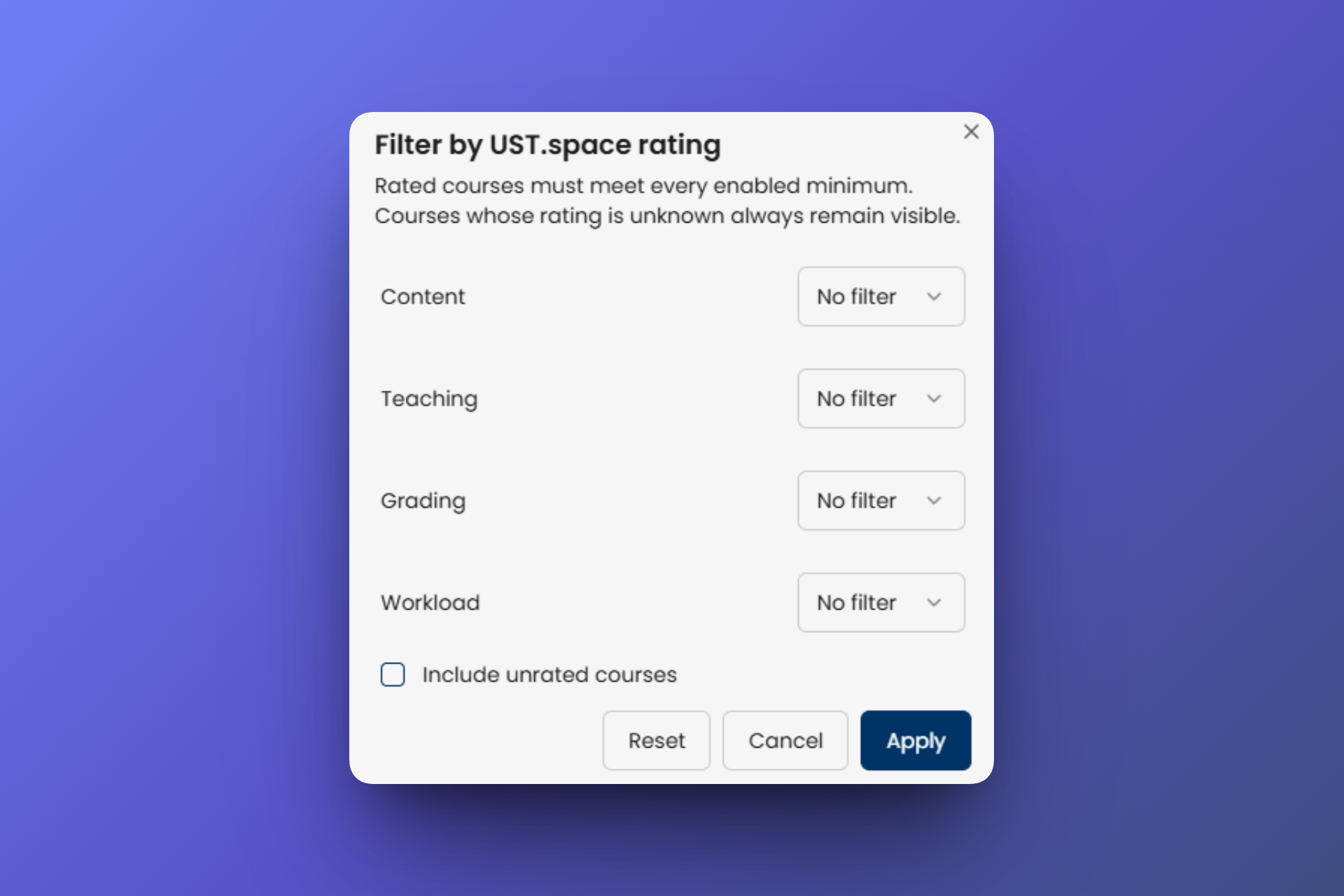
- Select Filter by rating above the results.
- Choose a minimum letter grade for any combination of Content, Teaching, Grading, and Workload.
- Select Include unrated courses if courses confirmed to have no reviews should remain visible.
- Select Apply.
A rated course must meet every enabled minimum. Courses whose rating has not been retrieved remain visible so a temporary extension or network problem does not hide possible results.
Data and permissions
The extension requests access to https://ust.space/* so its background worker can retrieve course reviews using the UST.space session already active in Chrome. It does not request Chrome cookie permission.
Data retrieved is stored in your plan, and will be available in other devices when you sign in to USThing.