Timetable Planner
The Timetable Planner helps you build an HKUST class schedule, compare compatible section combinations, and spot time conflicts before enrollment.
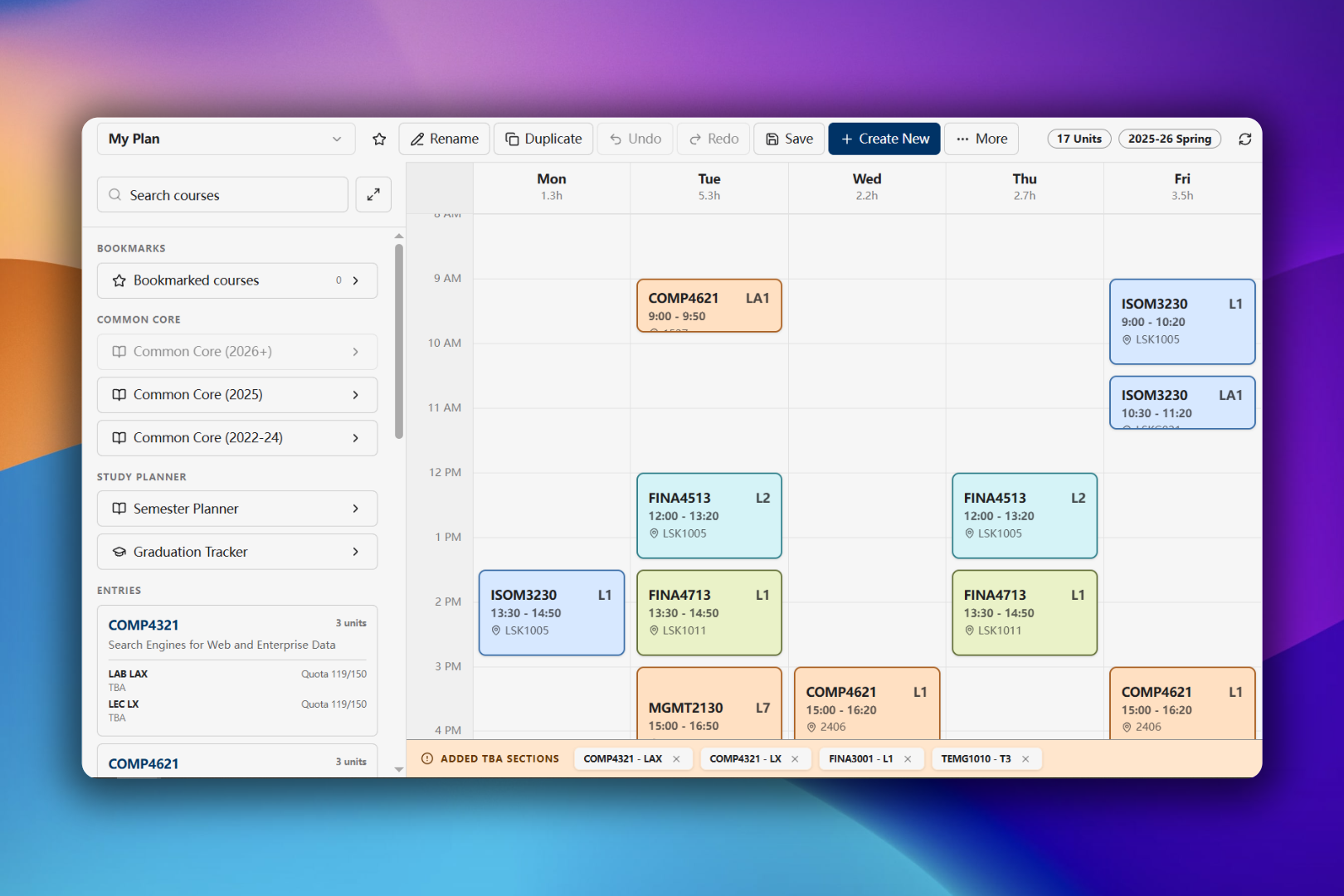
The planner is a planning aid. Always confirm your final schedule, enrollment status, prerequisites, and section availability in SIS.
Create a plan
- Open Timetable Planner in the Dashboard.
- Select Create plan.
- Enter a plan name and choose its academic term.
- Keep Import enrolled sections selected if you want to start with your eligible SIS enrollment for that term.
- Review the import preview, then select Create plan.
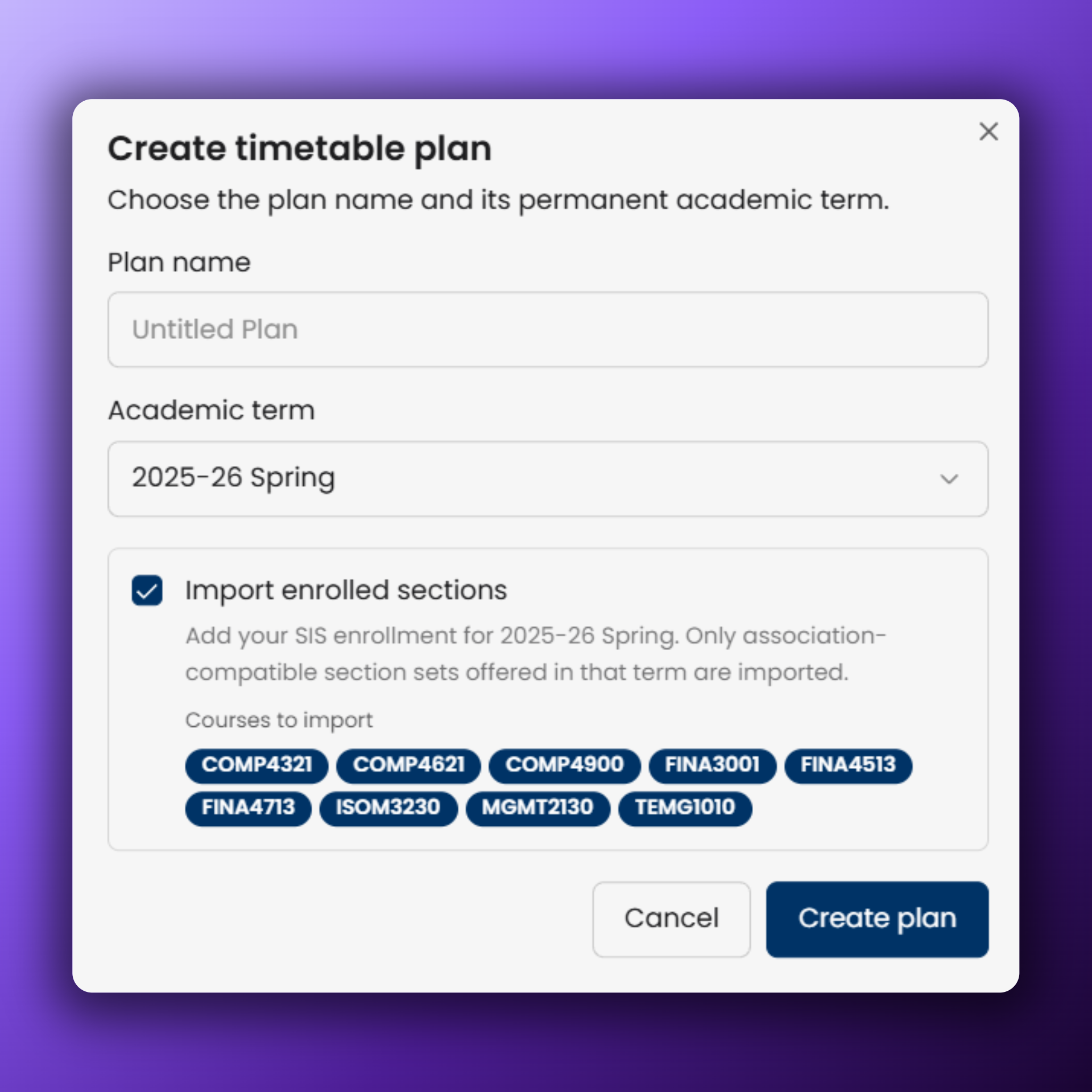
The academic term cannot be changed after the plan is created. Create another plan if you want to work with a different term.
Add courses and sections
On a desktop, use the course browser beside the timetable. On a phone, select the floating Browse courses button.
- Search or filter for a course.
- Open the course to view its description, requirements, and available lecture, tutorial, and lab sections.
- Hover over or focus a section to preview it on the timetable.
- Select a section to apply it. The planner also selects association-compatible sections when required.
Selected sections appear under Entries and on the timetable grid. Open a selected course to change its sections or remove the course.
Understand timetable warnings
- Red sections overlap another selected section and require your attention.
- The warning below the grid reports when the timetable contains conflicts.
- Sections without a confirmed meeting time appear under Added TBA Sections instead of at a time on the grid.
- Hover over a section to see quota, waitlist, instructor, linked sections, and conflicts.
Save and manage plans
Edits are saved automatically after a short pause. Select Save to save immediately.
The top toolbar also lets you:
- switch between plans;
- bookmark, rename, duplicate, or delete a plan;
- undo and redo section changes;
- create another plan;
- show or hide weekend columns; and
- reload course, enrollment, and Study Planner data.
The unit total is calculated once per course, even when the course has multiple class components.