Course Search and Course Pages
Use course search to find HKUST courses by code or title. Open a course page to explore its requirements, classes, seats, grade distribution, and connections to your study plans.
Find a course
After you sign in, course search is available:
- At the top of the Dashboard home page.
- Above course pages on desktop.
- In the header on phones.
- Through a search dialog on desktop.
- Select the search box.
- Enter at least two characters from a course code or title, such as
COMP 2011ormachine learning. - Select a result to open its course page.
Keyboard shortcuts
On desktop, these shortcuts open the search dialog from any Dashboard page:
| Shortcut | Action |
|---|---|
/ | Open search while you are outside a text field |
⌘K on Mac or Ctrl+K on Windows/Linux | Open or close search, including from a text field |
↑ / ↓ | Move between results |
Enter | Open the highlighted result |
Esc | Close search |
The search dialog does not open over another dialog. On phones, use the search box in the header.
Course page features
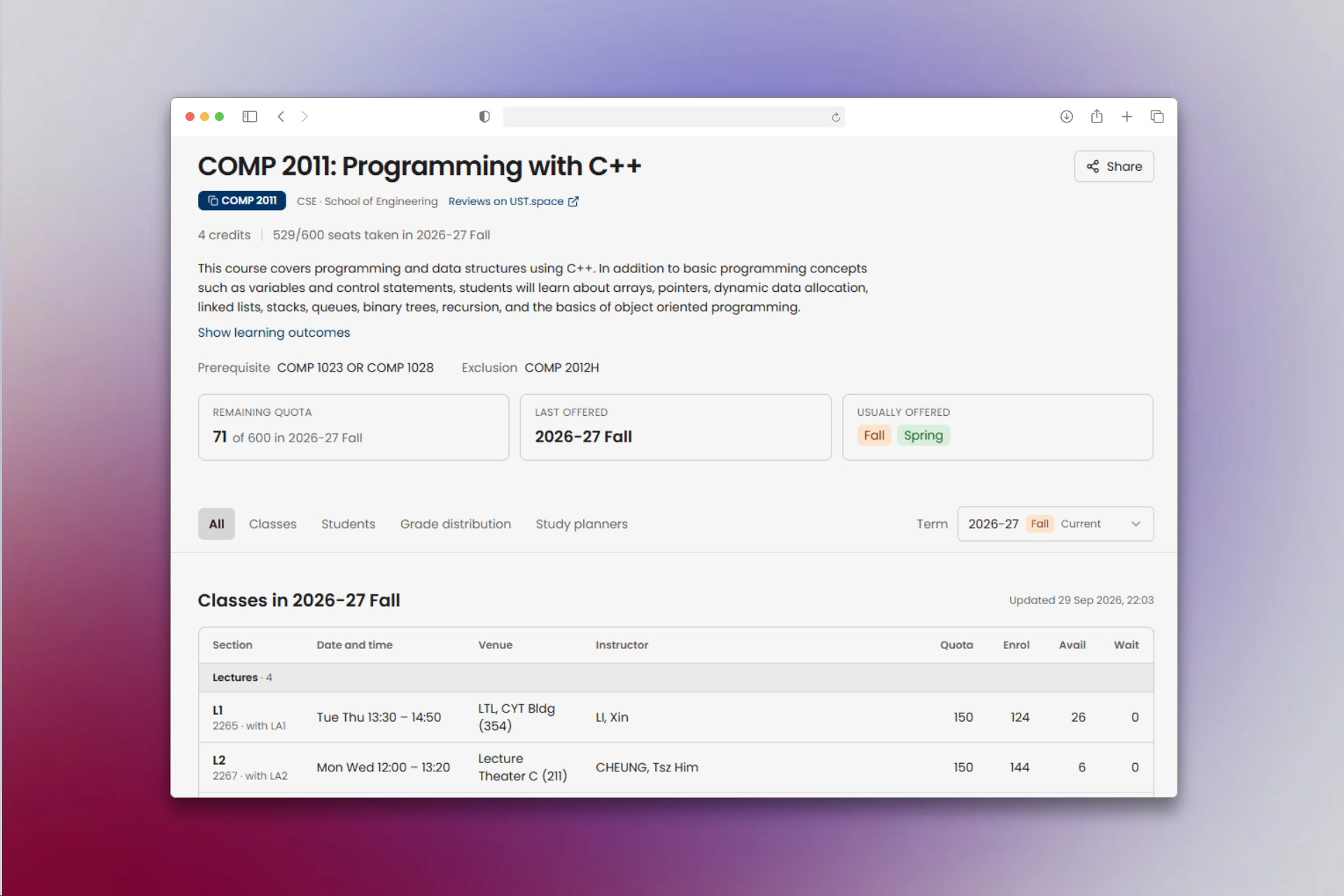
- Course overview: View the description, credits, learning outcomes, requirements, and Common Core areas.
- Offering information: See remaining quota, the last offering, and the seasons in which the course usually runs.
- Term selection: Switch academic terms to view the corresponding course information, classes, and Timetable Plans.
- Classes: Compare section times, venues, instructors, quotas, enrollment, available seats, waitlists, and remarks.
- Seats by term: Compare enrollment and quota across academic terms in the Students tab.
- Grade distribution: View combined grade statistics for a term or all terms after you opt in to grade sharing.
- Study planners: Find related Graduation Plans, Semester Plans, and Timetable Plans.
- Curricula: Search and sort published curricula that include the course.
Share a course
- Select Share beside the course title.
- Copy the course link, or select Share link to use your device’s sharing options.